Canary Releases
Canary Releases let you send a deployment to a few devices you pick before the rest of your fleet gets it. Every other device keeps receiving your current stable deployment. When you are happy with how the canary devices are doing, you deploy it to the whole fleet in one step.
Create a canary deployment
- Navigate to the Deployments tab for your product.
- Click Create a new deployment.
- Enter a name and, optionally, a description.
- Upload a firmware binary and check that its version is correct.
- Check This is a canary release.
- In Canary devices, search by device ID and select one or more devices.
- Click Deploy Now to start the canary right away, or Save Draft to create it inactive.
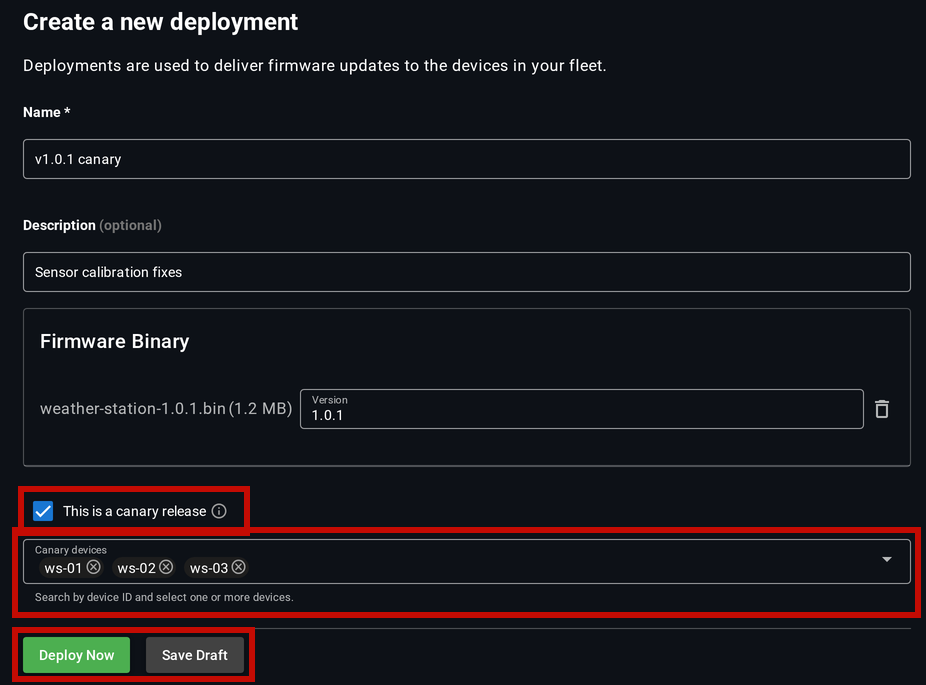
Deploy Now and Save Draft stay disabled until you select at least one device.
If your product already has a canary group, the Canary devices list starts with those devices selected. Remove any you don’t want.
To start a draft canary later, open it from the Deployments tab, click Activate, then click Proceed.
Check the canary devices
A canary deployment shows a Canary badge in the deployment list and on its deployment page.
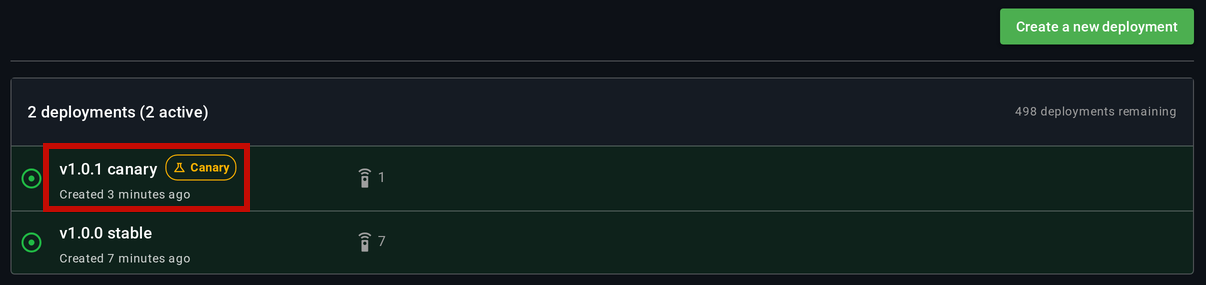
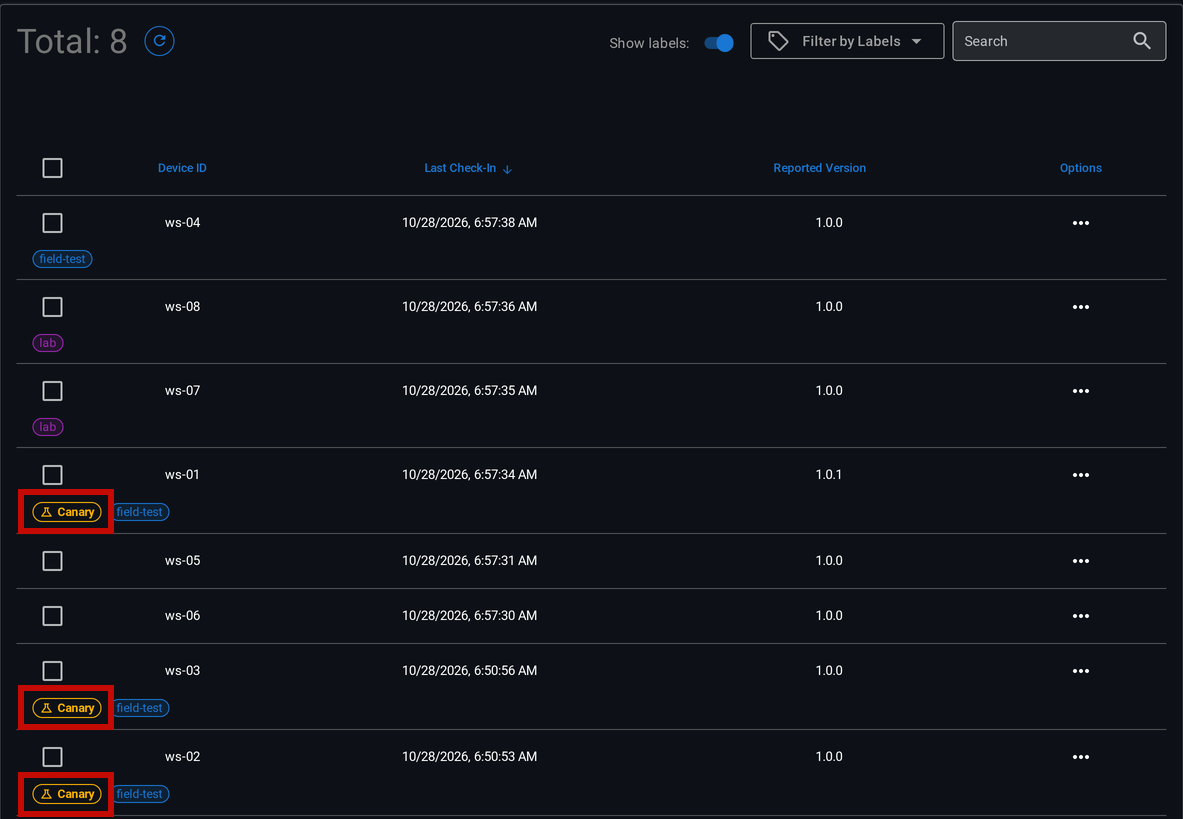
Each device in your canary group shows a Canary badge with its labels in the Device View.
To see or change the devices in a canary:
- Open the canary deployment from the Deployments tab.
- Find the Canary devices section. It shows a device count and lists each device with its reported version.
- To change the list, click Edit devices.
- Select or remove devices, then click Save.
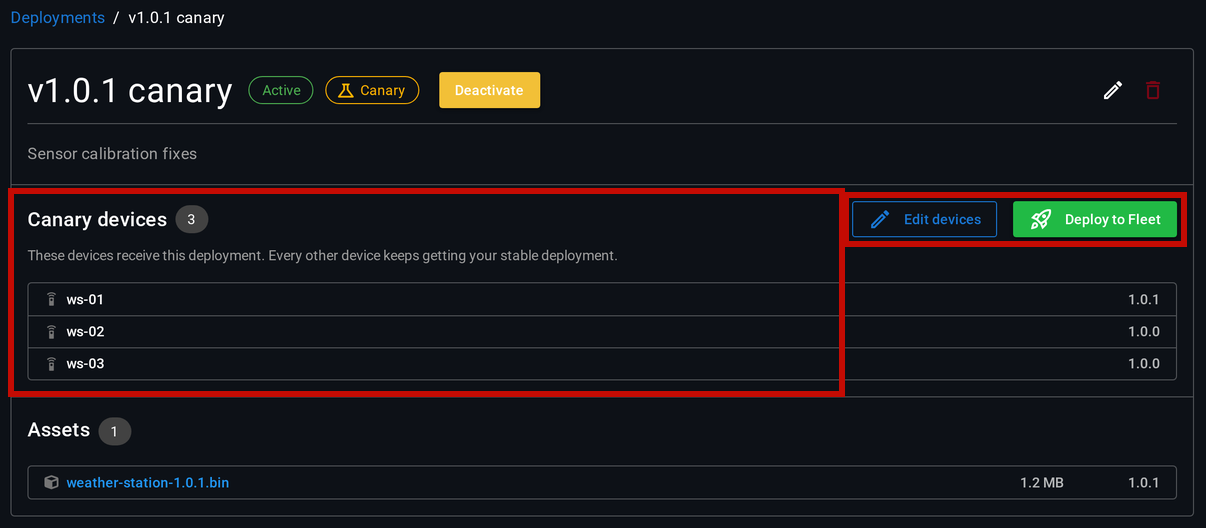
The list you save replaces the old one. Save stays disabled while the list is empty.
Deploy to the fleet
When you are happy with the canary build:
- Open the canary deployment from the Deployments tab.
- Click Deploy to Fleet.
- In the confirmation dialog, click Deploy to Fleet.
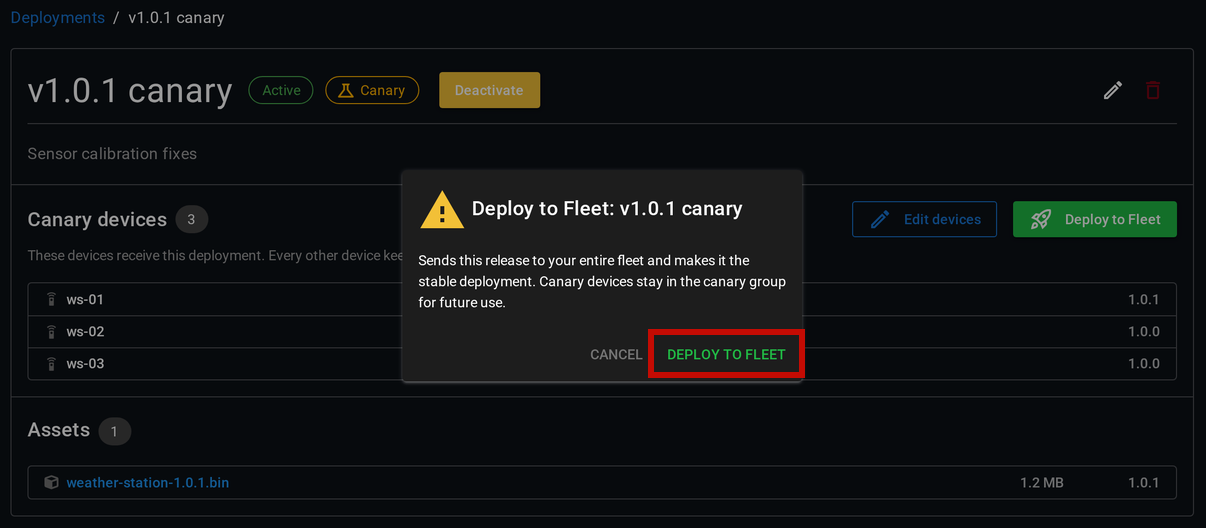
The deployment goes to your entire fleet and becomes the stable deployment. It is no longer a canary, and your previous stable deployment is deactivated, so the promoted deployment is the only active one.
The devices in your canary group stay in the group. They are selected for you the next time you create a canary deployment.
There is no automatic health check before Deploy to Fleet. Promoting is your call.
Deploy to Fleet only appears while the canary is active. To promote a draft canary, click Activate first.
Roll back a canary
- Open the canary deployment from the Deployments tab.
- Click Deactivate, then click Proceed.
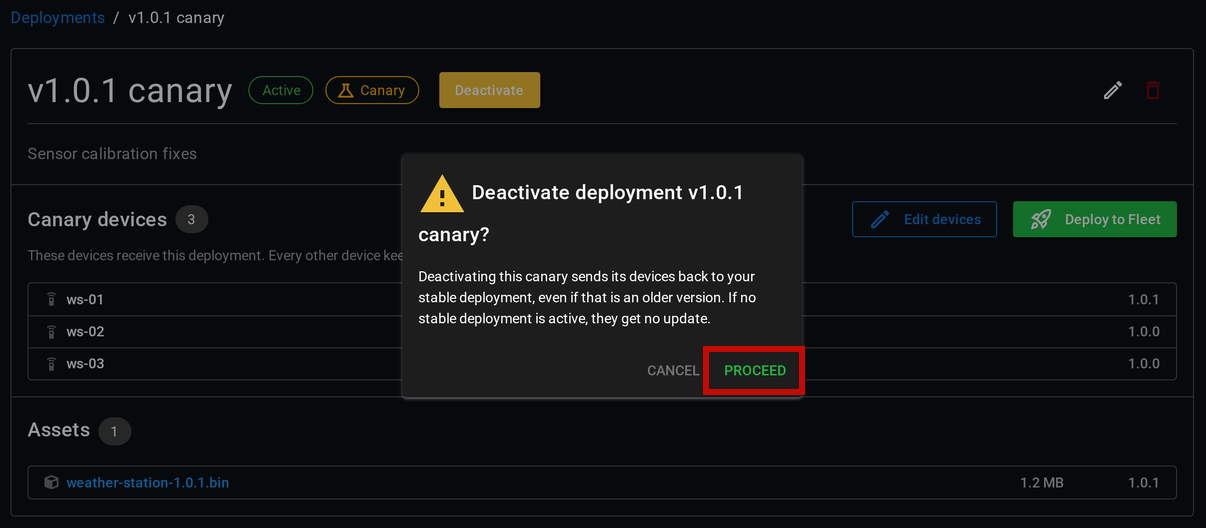
At their next check-in, canary devices are offered your active stable deployment again. If no stable deployment is active, they are offered nothing and keep running the build they have.
WARNING: Rolling back can downgrade your canary devices, and that is by design. Deploy the Fleet offers the active deployment to any device whose reported version differs from the deployment’s version, whether it is newer or older. After a rollback, devices running the canary build are offered the stable build even when its version is older.
A deactivated canary still counts as your product’s canary. You can activate it again and then deploy it to the fleet. To try a different build instead, delete the deactivated canary and create a new canary deployment. Your canary group is kept and pre-selected for the new one.
Rules and limits
- Each product can have one canary. A draft, active, or deactivated canary blocks a new one until you deploy it to the fleet or delete it. While one exists, the This is a canary release checkbox is disabled.
- A canary deployment always needs at least one device.
- A stable deployment and a canary can be active at the same time. Devices outside the canary group keep getting the stable deployment. If no stable deployment is active, they get no update.
- You pick each canary device by device ID. There is no percentage-based rollout.
- Deploy the Fleet decides what to offer each device when it checks in. A device that is offline when you start, promote, or roll back a canary gets the matching update at its next check-in.
- Deploy the Fleet only sees the version a device reports. A device that fails to apply an update keeps reporting its old version and is offered the same update again at its next check-in.
- To change the canary group, use Edit devices while a canary exists, or change the selection when you create the next canary deployment. Deleting a device also removes it from the group.
- A canary deployment counts toward your plan’s deployment limit like any other deployment, including drafts and deactivated deployments.
- Label names starting with
dtf_are reserved for Deploy the Fleet, which uses them to track canary devices. You cannot create or rename a label to adtf_name, and the canary group does not appear in your label lists. - Canary Releases need no firmware changes. They use the same update check your devices already make.